
Adding New OAuth App Scopes
How to add new OAuth App Scopes
NoteIn case you're looking to add support to an endpoint that is protected by a scope that your OAuth application already possess, then this guide isn't for you!
Overview
Adding new OAuth scopes to your OAuth application allows you to enhance the capabilities of your integration with the Carta API platform, providing more value to your users and expanding the range of actions they can perform.
A note about OAuth application mutability
To ensure a consistent and secure experience for our partners, we've structured our OAuth applications such that once they're deployed to the Production environment, they become immutable. This means that live OAuth applications are locked from modifications, including the addition or removal of associated OAuth scopes.
Instead of attempting to modify a live OAuth application directly, the recommended approach is to follow the Playground to Production flow. This involves either utilizing an existing playground OAuth application or creating one from scratch to test and iterate on new functionalities before the transition.
The following sections outline this process on Carta's Developer Portal and provide guidance from the Carta API platform team on managing these changes on your end of the integration.
Adding new scopes to an OAuth application on Carta's Developer Portal
-
Open your browser and navigate to Carta's Developer Portal.
-
You should login with the same email address and password that were previously used to create the OAuth application.
-
Once logged in, you'll be redirected to the OAuth application list view, where you'll see all the OAuth applications that you own.
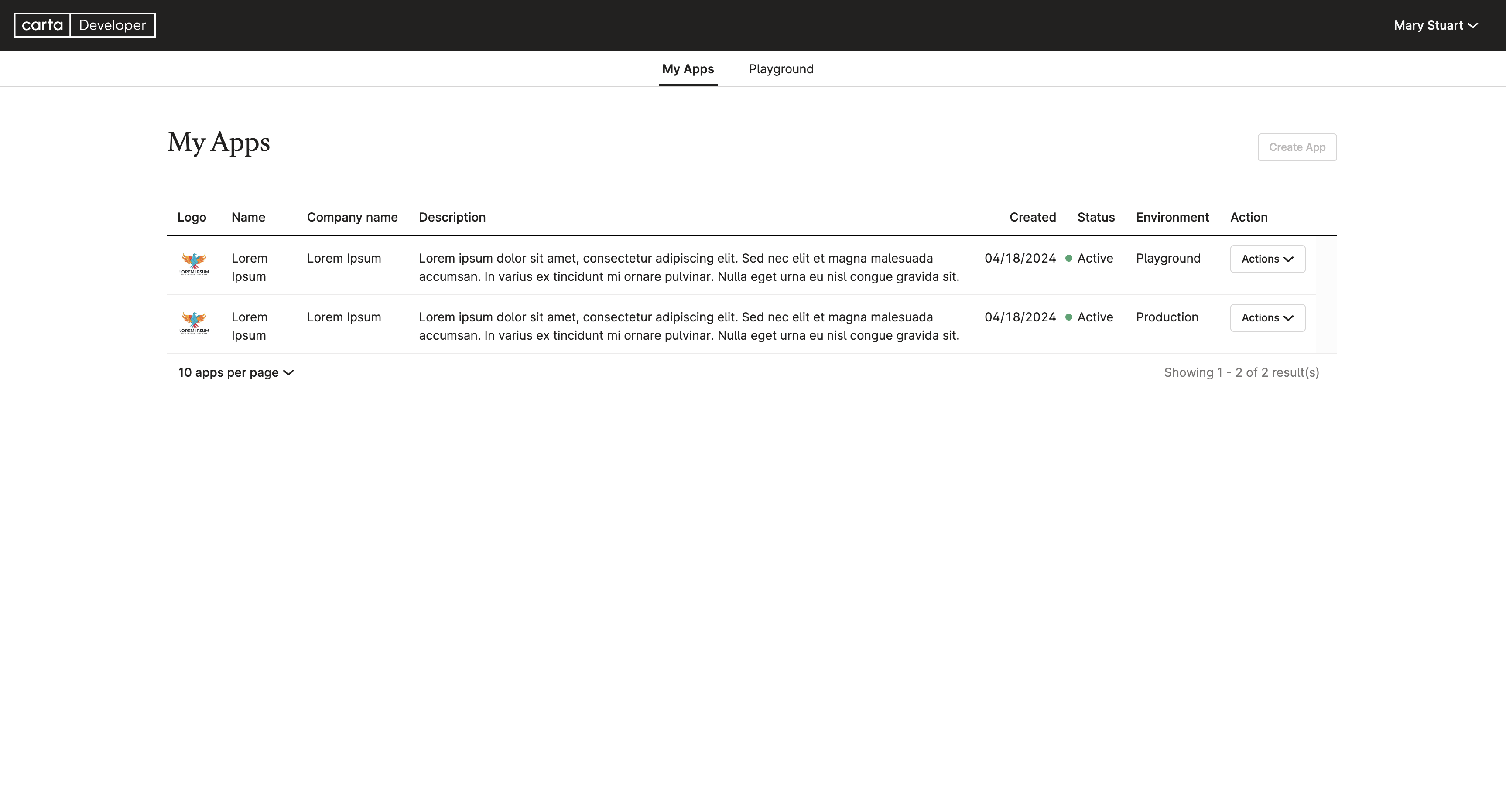
You should see your
ProductionOAuth application, alongside thePlaygroundOAuth application which is originated from. -
On the
PlaygroundOAuth application row, clickActions>Promote to production.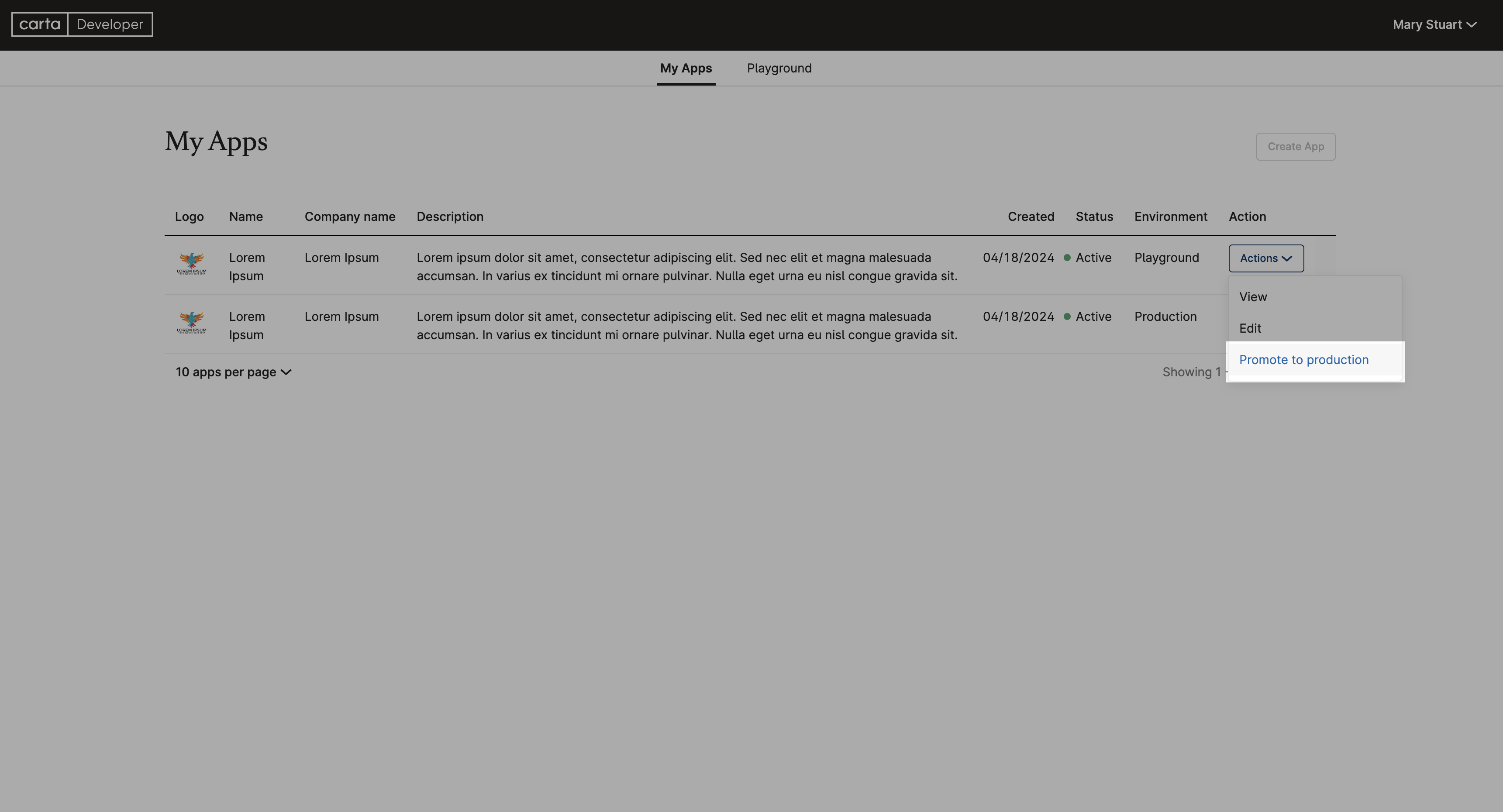
You should be redirected to the OAuth application editing view.
-
Scroll down until you see the OAuth scopes section.
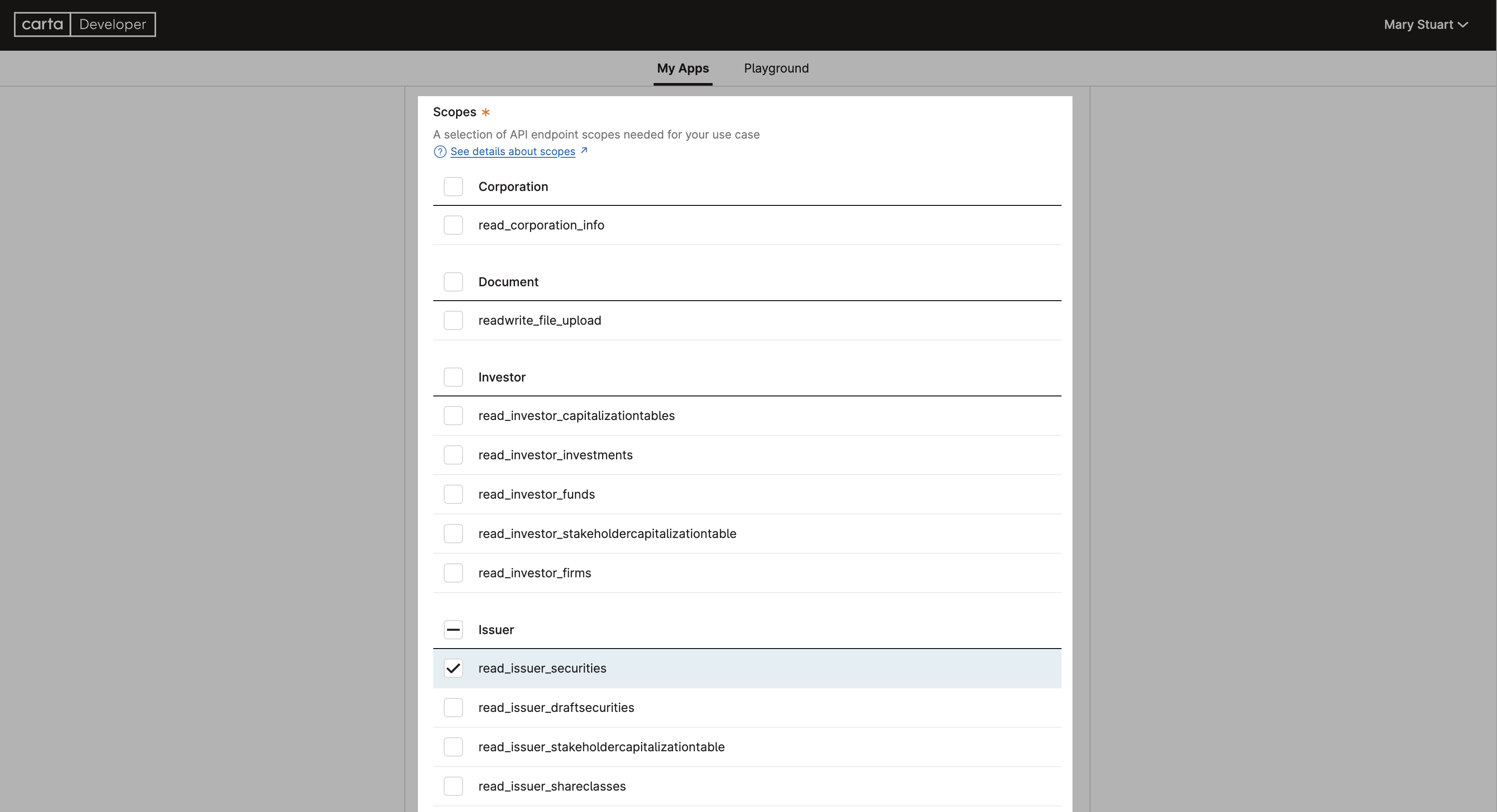
Mark the checkboxes next to the scopes you wish to enable.
-
Make sure all information is correct before proceeding to the next step.
-
Scroll all the way down to the bottom of the OAuth application editing view and click on the
Submitbutton.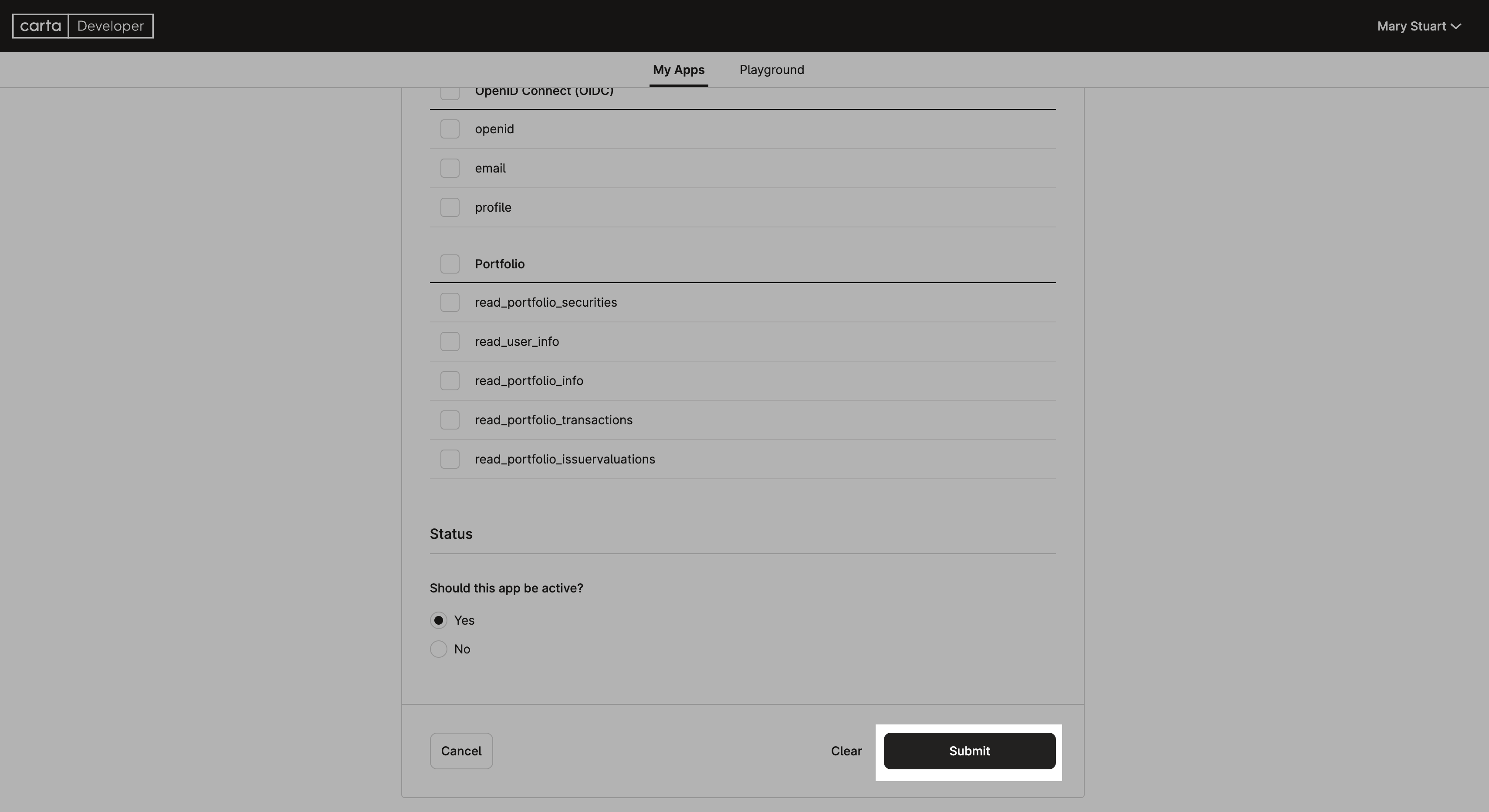
You should be redirected to the OAuth application details view with a green banner affirming a successful submission.
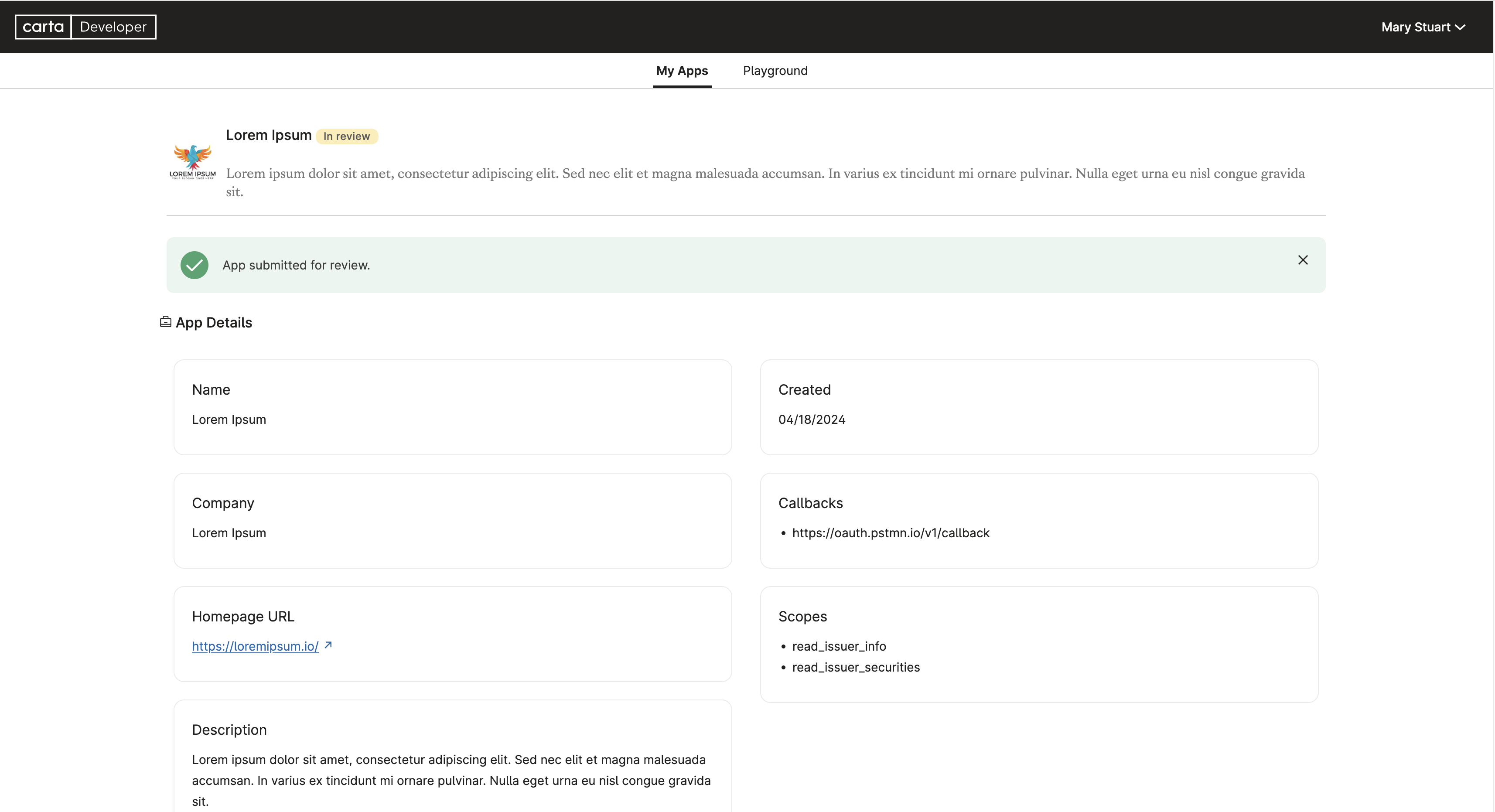
That's it! You managed to submit a new OAuth application to be reviewed by our team.
NoteOnce your new OAuth application gets approved, you'll end up with multiple live OAuth applications.
It's up to you to decide which OAuth applications should be keptactiveorinactive.
Managing New Scopes on Your End of the Integration
Monitoring OAuth Scopes Linked to Each Access Token
There's a common misconception surrounding OAuth 2.0 client authentication, often assuming that the client must request all OAuth scopes supported by the associated OAuth application. However, this isn't the case. In OAuth 2.0 authentication, a client should only request the OAuth scopes relevant to their specific use cases, provided they are a subset of all supported OAuth scopes by the associated OAuth application. For example, if your OAuth app requests read_issuer_info, readwrite_issuer_securities and read_issuer_capitalizationtablesummary scopes, the client could potentially only authorize the application access to scopes read_issuer_info and readwrite_issuer_securities.
Hence, since each generated access token may possess a distinct set of associated OAuth scopes, we highly recommend that your client code maintains a record of the OAuth scopes granted for each authentication.
When considering the addition of new functionality to your OAuth application, this approach offers significant benefits. It allows for precise control over the actions available to each user, aiding in migration planning and controlling functionalities that necessitate new endpoints utilizing new scopes. For example ...
Incorporating New OAuth Scopes into Client Code
If you've maintained a record of the OAuth scopes assigned to each access token, here's some things to keep in mind when adding new functionality to your code:
- New users will gain access to all client experiences, including the newly added scopes.
- Existing users retain access to client experiences that were available before the introduction of new functionalities.
- This means, if an existing user attempts to use a new feature which necessitates a scope they lack, your application should prompt the user to reauthorize, informing them of the need to grant additional permissions.
Updated 5 months ago